
Gaming laptops are designed to handle demanding games, powerful graphics, and long gaming sessions. However, they can develop heating problems when their cooling systems cannot remove heat properly. If your laptop gets extremely hot, slows down, or suddenly shuts down while playing games, it may need attention. Professional gaming laptop repair Houston services can help identify the cause and restore your laptop’s performance. For Houston gamers, understanding the reasons behind overheating is important because warm surroundings, dust buildup, and poor ventilation can make the problem worse. Fortunately, some issues can be managed with simple maintenance, while others require professional repair. In this guide, we will explain common overheating causes, practical solutions, warning signs, and ways to keep your gaming laptop running smoothly.
Why Do Gaming Laptops Overheat?
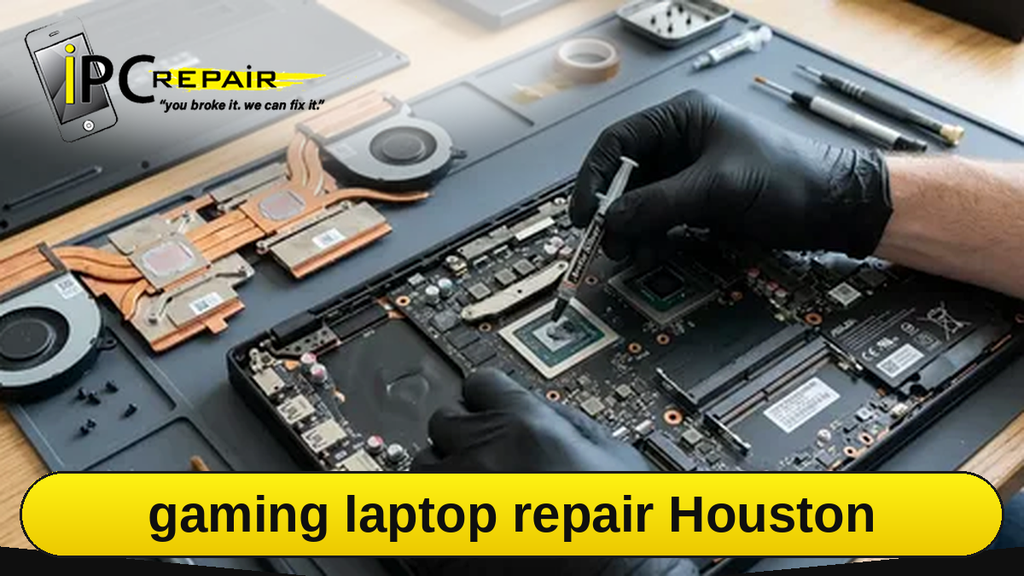
Gaming laptops contain powerful processors, graphics cards, fans, and other components that generate heat during use. When you play demanding games, these components work harder than they do during regular browsing or office tasks. If the cooling system cannot release that heat efficiently, the laptop temperature begins to rise. Gaming laptop temperature problems can develop when several cooling components stop working together properly.
Another common reason is poor maintenance. Dust can collect inside the laptop and restrict the movement of air through its vents. Over time, old thermal paste, damaged fans, and blocked heat sinks can also affect cooling performance. If your gaming laptop running too hot becomes a regular problem, you should investigate it instead of ignoring the warning signs.
High CPU and GPU Usage
The CPU and GPU handle most of the demanding work during gaming. The processor manages game instructions, while the graphics card produces the images you see on the screen. When both components work at high capacity, they generate considerable heat. This is normal to some extent, but temperatures that remain too high can affect performance.
A demanding game, high graphics settings, and several background applications can increase the workload. If you notice your gaming laptop CPU overheating during gameplay, check which applications are using your system resources. You should also monitor your gaming laptop GPU temperature with a reliable monitoring tool to understand whether the graphics card is getting unusually hot.
Dust Buildup Inside the Laptop
Dust is one of the most common reasons gaming laptops struggle with heat. Small particles enter through the ventilation openings and collect around fans, heat sinks, and internal cooling channels. As the buildup increases, airflow becomes weaker, making it harder for the laptop to release heat.
A professional gaming laptop dust cleaning service can remove dust from internal components without damaging delicate parts. Regular internal laptop cleaning Houston services may also help prevent blocked vents and unnecessary fan strain. Cleaning is especially important if you use your laptop every day or keep it in a dusty environment.
Poor Ventilation and Warm Surroundings
Your laptop needs enough space to move air through its cooling system. Using it on a bed, blanket, sofa, or cushion can block the bottom ventilation openings. This prevents cool air from reaching the internal components and allows heat to build up.
Houston’s warm weather can also make cooling more challenging, especially when you game in a poorly ventilated room. Make sure your laptop sits on a hard, flat surface and has enough space around its vents. These small changes can help reduce laptop ventilation problems and support better gaming laptop airflow improvement.
Common Signs Your Gaming Laptop Is Overheating
Overheating does not always begin with a sudden shutdown. In many cases, your laptop gives smaller warnings before the problem becomes serious. You might notice slower gameplay, louder fans, unusual heat around the keyboard, or reduced performance during demanding games.
Pay attention to these changes instead of waiting for your laptop to stop working. Identifying the symptoms early can help you avoid unnecessary component damage. A timely gaming laptop overheating repair Houston service may help address cooling issues before they become more expensive to fix.
Sudden FPS Drops and Slow Performance
One common overheating symptom is a sudden drop in frames per second (FPS). Your game may run smoothly at first, but after some time, the graphics become less responsive. You may also experience stuttering, freezing, or delayed reactions while playing.
This happens because the laptop may reduce its processing speed to control heat. This process is called thermal throttling. If you notice gaming laptop performance issues, check the system temperature and workload. A suitable gaming laptop slow performance fix depends on whether the problem comes from overheating, software settings, or failing hardware.
Loud Fans and Excessive Heat
Laptop fans increase their speed when internal components become hot. A louder fan during gaming is not always a problem because demanding games naturally create more heat. However, constant loud noise, grinding sounds, or fans running at full speed during simple tasks may indicate a cooling issue.
If you hear a laptop fan making loud noise, check whether the vents are blocked and whether the laptop has enough airflow. A laptop fan not working repair may be necessary if the fan stops spinning, makes unusual mechanical sounds, or cannot maintain proper cooling.
Unexpected Shutdowns During Gaming
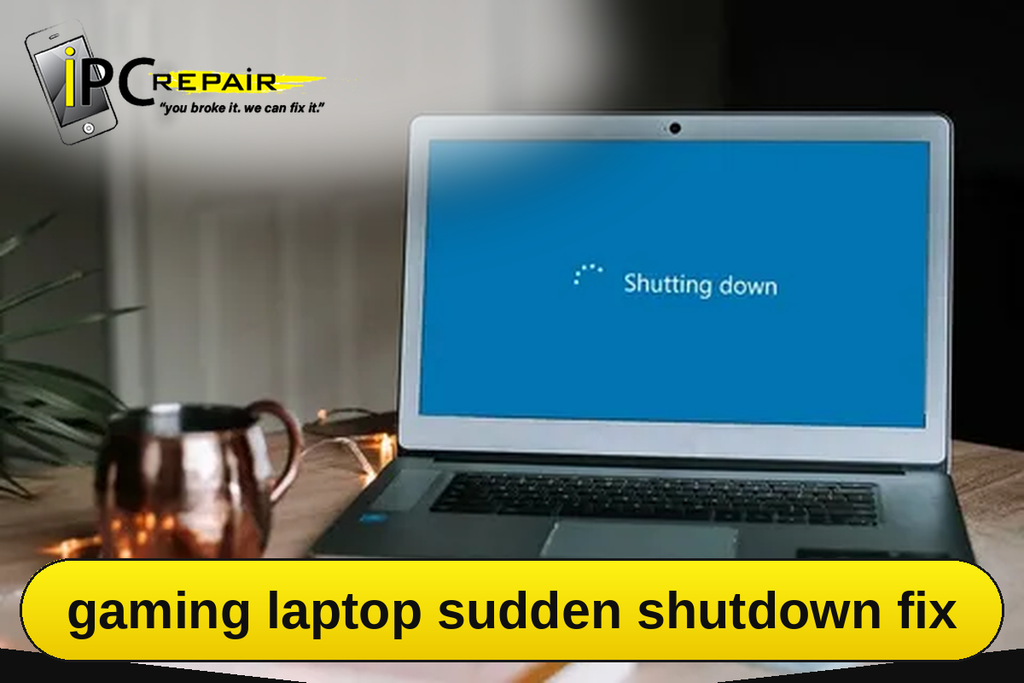
A laptop may shut down automatically when its internal temperature reaches a dangerous level. This protective response helps prevent additional damage to sensitive components. You might notice that the system switches off during long gaming sessions or restarts after becoming extremely hot.
If your laptop shuts down while gaming, avoid repeatedly turning it back on without checking the cause. A proper gaming laptop sudden shutdown fix starts with identifying the temperature, fan condition, ventilation, and power-related issues. Repeated overheating should never be treated as normal laptop behavior.
How to Fix a Gaming Laptop That Gets Too Hot
You can try several basic steps before arranging a repair. Start with simple maintenance, check your gaming settings, and make sure your laptop has enough room for ventilation. These steps may reduce heat when the problem comes from blocked airflow or excessive system workload.
However, home maintenance cannot solve every cooling issue. If your laptop continues overheating after basic adjustments, it may have a damaged fan, dried thermal paste, or an internal hardware problem. In that situation, professional gaming laptop repair services in Houston can help identify the exact issue.
Clean the Laptop’s Air Vents
Start by checking the ventilation openings on the sides and bottom of your laptop. If you see dust around the vents, clean the outside carefully with a soft, dry cloth. You can also use compressed air cautiously according to the laptop manufacturer’s cleaning instructions.
Avoid inserting sharp objects into ventilation openings or opening the laptop if you are not familiar with its internal components. Improper cleaning can damage fan blades, cables, or other delicate parts. If the vents remain blocked internally, a professional gaming laptop heat sink cleaning service may help restore proper airflow.
Use a Cooling Pad
A cooling pad can provide additional airflow underneath your gaming laptop. Most cooling pads use built-in fans to move air around the laptop’s base. This can help when the original ventilation system struggles with warm surroundings or long gaming sessions.
Choose a cooling pad that fits your laptop’s size and ventilation design. Keep in mind that it cannot repair a broken internal fan or damaged heat sink. A laptop cooling pad for gaming works best as an additional cooling measure rather than a replacement for proper internal maintenance.
Reduce Graphics and Performance Settings
Running every game at maximum graphics settings can increase the workload on your CPU and GPU. If your laptop struggles with heat, lowering demanding settings may reduce the pressure on these components.
Try these adjustments:
- Reduce graphics quality and shadow details.
- Limit the game’s frame rate if your hardware does not need higher FPS.
- Close unnecessary background applications.
- Update your graphics drivers through official sources.
- Use balanced power settings when maximum performance is unnecessary.
These changes can help with a basic laptop GPU overheating fix when excessive workload contributes to the problem. They may also reduce the need for constant maximum fan speed.
Keep Your Laptop on a Hard Surface
The surface beneath your laptop makes a difference. Soft materials such as blankets, pillows, and mattresses can cover ventilation openings. Even a small obstruction may restrict airflow and increase internal temperatures during demanding games.
Place your laptop on a desk or another flat surface. Avoid covering the exhaust vents with books, accessories, or other objects. Giving your laptop enough breathing room is a simple way to reduce heat and maintain more consistent performance.
When Does Your Laptop Need Professional Repair?
Sometimes overheating continues even after cleaning the vents, changing settings, and improving room ventilation. This usually means the problem may involve an internal cooling component. Continuing to use a laptop with serious overheating symptoms can put unnecessary stress on its hardware.
Professional technicians can inspect the cooling system, check the fan condition, and identify damaged components. If you need laptop overheating repair in Houston, TX, proper diagnosis is important because replacing parts without understanding the actual problem can waste money and time.
Cooling Fans Are Not Working Properly
Cooling fans move hot air away from the processor and graphics card. If a fan becomes damaged, stops spinning, or operates inconsistently, internal temperatures can rise quickly. You may notice excessive heat even during activities that normally require little processing power.
A technician can inspect the fan, its connection, and the surrounding cooling components. Depending on its condition, gaming laptop fan replacement Houston may be necessary. Professional laptop cooling fan repair Houston can also help determine whether the problem comes from the fan itself or another part of the cooling system.
Thermal Paste Has Become Less Effective
Thermal paste sits between the processor and its heat sink. It helps transfer heat from the CPU or GPU to the cooling system, allowing the fans to remove it more effectively. Over time, thermal paste can dry out or lose its ability to transfer heat efficiently.
When this happens, the laptop may run hotter even if its fans are working. A technician can inspect the cooling assembly and replace the old material when necessary. Proper gaming laptop thermal paste replacement can improve heat transfer and help the cooling system work as intended.
Internal Cooling Components Need Attention
The cooling system contains several parts that work together. These may include fans, heat pipes, heat sinks, and ventilation channels. If one component becomes damaged or blocked, the entire system may struggle to control temperature.
A professional gaming laptop cooling system repair service can help identify damaged or poorly functioning components. Technicians may also perform professional gaming laptop repair when the problem requires internal inspection, component replacement, or more advanced troubleshooting.
Professional Gaming Laptop Repair Services in Houston
Houston gamers need a laptop that can handle demanding games without frequent interruptions. When basic maintenance does not solve overheating, a proper inspection can help identify the source of the problem. Different laptops have different cooling designs, so technicians should examine the actual model before recommending a repair.
At IPC Repair Houston, customers can explore available computer and laptop repair support for their device concerns. Whether your laptop has noisy fans, unusual temperatures, or performance drops, the right repair approach should begin with understanding the symptoms and checking the affected components.
Fan Replacement and Cooling Maintenance
A damaged fan can prevent your laptop from releasing heat properly. Before replacing it, a technician should inspect its condition, power connection, and compatibility with the laptop model. Using the correct replacement component is important for reliable operation.
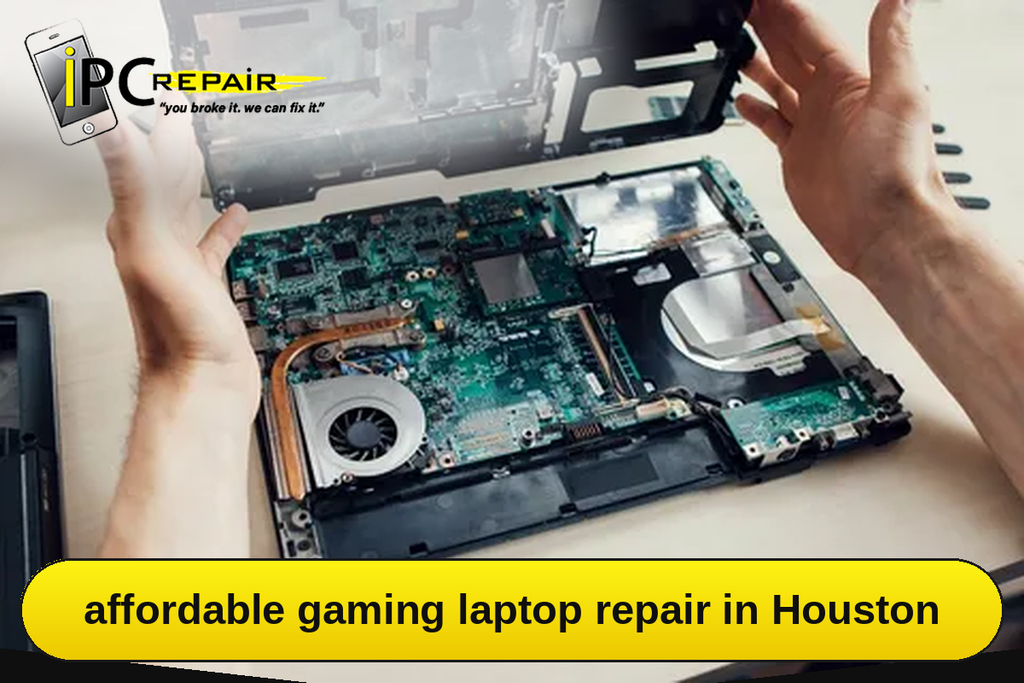
If you need affordable gaming laptop repair in Houston, ask for a diagnosis and repair estimate before approving the work. You can also discuss gaming laptop maintenance in Houston to understand which cleaning and cooling services may help reduce future problems.
Internal Cleaning and Heat Sink Inspection
Internal cleaning involves more than removing visible dust from the outside vents. Dust can collect around fan blades and between heat sink fins, where it becomes difficult to remove without opening the laptop. Improper handling can damage sensitive parts, so internal cleaning requires care.
During a suitable service, a technician may inspect the fan, heat sink, and ventilation channels. If you are looking for same-day gaming laptop repair in Houston, contact IPC Repair Houston to ask about current availability. Repair time depends on the laptop model, the problem, and the availability of required parts.
Hardware Diagnostics and Temperature Testing
Overheating can sometimes be related to more than one component. For example, a laptop may have a blocked heat sink, an aging fan, and excessive background CPU usage at the same time. Checking only one part may not reveal the complete problem.
A gaming laptop hardware diagnostics process can help identify the affected components and determine what needs attention. An experienced gaming laptop repair technician in Houston can inspect the symptoms, review system behavior, and explain possible repair options before work begins.
Overheating Problems in Popular Gaming Laptops
Different gaming laptop brands use different cooling designs. Some models have multiple fans and heat pipes, while others use compact cooling assemblies to fit powerful components into a smaller body. Because of these differences, the same overheating symptom may have different causes on different laptops.
If your laptop belongs to a popular gaming series, share its exact model number when arranging an inspection. This helps the technician understand the device’s cooling design and identify suitable replacement components when necessary.
ASUS and MSI Gaming Laptop Issues
Some ASUS gaming laptops may develop cooling problems when dust builds up around their ventilation channels or fans. Depending on the model, users may notice high temperatures, loud fan operation, or reduced gaming performance. ASUS gaming laptop overheating repair should begin with checking the actual cooling condition rather than assuming that every model has the same issue.
MSI gaming laptops also rely on internal fans and heat sinks to control temperatures during demanding games. If the fan becomes noisy or stops working correctly, the system may struggle to remove heat. Proper MSI gaming laptop fan repair can help identify whether cleaning, repair, or replacement is necessary.
Alienware, Acer Predator and Lenovo Legion
Alienware gaming laptops are designed for demanding workloads, but their cooling systems still need regular maintenance. Dust buildup, blocked airflow, and worn cooling components can contribute to excessive temperatures. An Alienware laptop overheating fix depends on the device’s condition and the specific source of heat.
Acer Predator and Lenovo Legion models also need proper ventilation during gaming. If you notice Acer Predator laptop cooling repair concerns, have the fan and heat sink inspected. Similarly, Lenovo Legion overheating problems may require cleaning, temperature testing, or an examination of the internal cooling assembly.
HP Omen Cooling Problems
HP Omen laptops use model-specific cooling arrangements to manage heat from their processors and graphics cards. When ventilation becomes restricted, or a cooling component stops working correctly, the laptop may become uncomfortable to use during long gaming sessions.
If your device shows HP Omen gaming laptop repair symptoms, note when the problem occurs and whether it happens during particular games. This information can help narrow down the possible cause and guide the technician toward the right inspection.
How to Prevent Gaming Laptop Overheating
Preventive maintenance can help reduce unnecessary heat and keep your gaming laptop in better condition. You do not need complicated tools or advanced technical knowledge to follow basic cooling habits. Simple changes in how you use and maintain your laptop can make a difference over time.
Start by keeping your gaming area clean, avoiding blocked vents, and checking for unusual fan noise. Regular gaming laptop overheating prevention tips can help you notice small problems before they affect everyday use. Good gaming laptop maintenance Houston habits also make it easier to identify changes in your laptop’s performance.
Follow a Regular Cleaning Routine
Clean the exterior vents regularly and keep dust away from your gaming setup. If you use your laptop in a dusty room, check the ventilation openings more frequently. Never use water or household cleaning liquids directly on the laptop.
For internal cleaning, follow the manufacturer’s guidance or arrange professional maintenance. Avoid opening the laptop without the correct tools and experience. Keeping the cooling channels clear can help the fans move air more effectively.
Monitor CPU and GPU Temperatures
Temperature monitoring tools can help you understand how your laptop behaves during gaming. Check the CPU and GPU readings while running a demanding game, then compare them with the manufacturer’s recommended operating limits for your specific model.
Do not rely on one temperature reading alone. Different processors and graphics cards have different operating limits. Watch for repeated temperature spikes, performance drops, and unusual fan behavior rather than assuming that every warm laptop needs repair.
Take Breaks During Long Gaming Sessions
Long gaming sessions keep the processor and graphics card under continuous workload. Taking occasional breaks gives the laptop time to reduce its workload, especially when you are playing demanding games for several hours.
You can also close unnecessary applications and avoid running multiple resource-heavy programs at the same time. These habits may help reduce system strain and make your gaming experience more comfortable.
Gaming Laptop Repair Costs in Houston
The cost of repairing an overheating gaming laptop depends on the cause of the problem. A simple cleaning service may cost less than replacing a damaged cooling fan or repairing a more complicated internal component. Laptop model, part availability, and repair time can also affect the final estimate.
For accurate pricing, request an inspection before approving the repair. A gaming laptop repair services Houston provider should explain the suspected issue, recommended solution, and estimated cost. Choosing affordable gaming laptop repair in Houston does not mean selecting the cheapest option without checking the quality and suitability of the repair.
What Affects the Repair Price?
Several factors can influence the overall repair cost:
- Cleaning: Internal dust removal and ventilation maintenance.
- Fan replacement: Cost depends on the laptop model and compatible part.
- Thermal paste: The price depends on the cooling assembly and labor involved.
- Heat sink repair: Damaged or blocked cooling components may require additional work.
- Advanced hardware problems: Motherboard-related issues may require more detailed diagnosis.
Always ask for a clear estimate before the technician starts the repair. This helps you understand which work is necessary and avoid paying for unnecessary replacements.
Why Choose IPC Repair Houston?
When overheating starts affecting your gaming experience, you need a repair solution based on the actual problem. Guessing which component has failed can lead to unnecessary expenses and repeated issues. A proper inspection helps determine whether your laptop needs cleaning, cooling maintenance, fan replacement, or another repair.
IPC Repair Houston provides a local point of contact for customers looking for computer and laptop repair support in Houston. You can visit https://ipcrepairhouston.com/ to explore the company’s services and contact information. Before arranging a repair, explain your laptop’s symptoms, model, and the situations in which overheating occurs.
Get the Right Diagnosis
Every overheating problem has a different cause. One laptop may need internal cleaning, while another may have a damaged fan or an issue with its heat sink. A reliable diagnosis helps identify the affected components before any repair work begins.
Ask questions about the recommended repair and the expected results. You should understand what caused the overheating and what steps may help prevent it from returning. Clear communication makes the repair process easier and helps you make an informed decision.
Frequently Asked Questions
1. Why does my gaming laptop overheat while playing games?
Gaming laptops overheat because of heavy CPU and GPU usage, dust buildup, or blocked ventilation. Poor cooling can also increase internal temperatures.
2. How can I stop my gaming laptop from overheating?
Clean the air vents, use a cooling pad, and keep your laptop on a flat surface. Lowering demanding graphics settings can also help.
3. When should I get professional gaming laptop repair in Houston?
Seek professional repair if your laptop shuts down unexpectedly, makes unusual fan noises, or becomes extremely hot during gaming.
4. Does replacing thermal paste help reduce laptop overheating?
Yes, fresh thermal paste can improve heat transfer between the processor and heat sink. This may help lower temperatures when old paste has dried out.
5. How much does gaming laptop repair cost in Houston?
Repair costs depend on the problem, laptop model, and replacement parts needed. A proper diagnosis helps determine the actual repair cost.
Conclusion: Keep Your Gaming Laptop Cool
Gaming laptop overheating can affect performance, interrupt your favorite games, and create unnecessary stress on internal components. Dust buildup, poor ventilation, damaged fans, and ineffective thermal paste are some common reasons behind the problem. Regular cleaning, sensible gaming settings, and proper laptop placement can help prevent many cooling issues. However, repeated shutdowns, loud fans, and high temperatures may require professional attention. Do not ignore these warning signs or continue putting extra pressure on an overheating device. If you need reliable gaming laptop repair Houston, contact IPC Repair Houston to discuss your laptop’s symptoms and available repair options. With the right diagnosis and maintenance, you can keep your gaming laptop running smoothly and enjoy more consistent gaming sessions.