
A dead iPhone screen is one of those problems that feels a lot worse than it usually is. In most cases, an iPhone that won’t turn on is fixable in under ten minutes with no tools and no repair shop but a small number of cases point to real hardware damage, and knowing the difference saves you time, money, and a wasted trip.
This guide walks through every troubleshooting step in the order a technician would actually try them, starting with the fastest fixes and working toward the signs that mean it’s time for a professional diagnosis.
Why Your iPhone Suddenly Won’t Turn On
Before troubleshooting, it helps to know what’s actually going wrong. A blank screen usually falls into one of four categories:
- Battery depletion the phone ran completely out of charge and needs time before it responds.
- Software crash an update, app, or corrupted file caused the system to freeze (often shows as a stuck Apple logo or boot loop).
- Charging issue the cable, adapter, outlet, or charging port isn’t delivering power.
- Hardware failure physical damage, a failed logic board component, or liquid damage is preventing the phone from powering on at all.
The first three are almost always fixable at home. The fourth usually isn’t and pushing too hard on DIY fixes for a hardware issue can make the eventual repair more expensive.
Step 1: Check the Charge (Before Anything Else)
It sounds obvious, but a fully drained battery is the most common reason an iPhone appears “dead.” A completely empty battery can take up to 30 minutes on a wall charger before the screen shows any sign of life even the charging symbol may not appear right away.
- Plug the iPhone into a wall outlet, not a laptop USB port (laptops often supply less power).
- Use the original or a certified cable if you have one.
- Wait at least 15–30 minutes before trying anything else.
- Look for the charging icon or any flicker of the Apple logo.
If nothing happens after 30 minutes on a known good charger, move to the next step.
Step 2: Force Restart Your iPhone
A force restart clears a frozen system without deleting any data. It’s different from a factory reset nothing is erased. The button sequence depends on your model.
iPhone 8 and later (including iPhone SE 2nd/3rd gen)
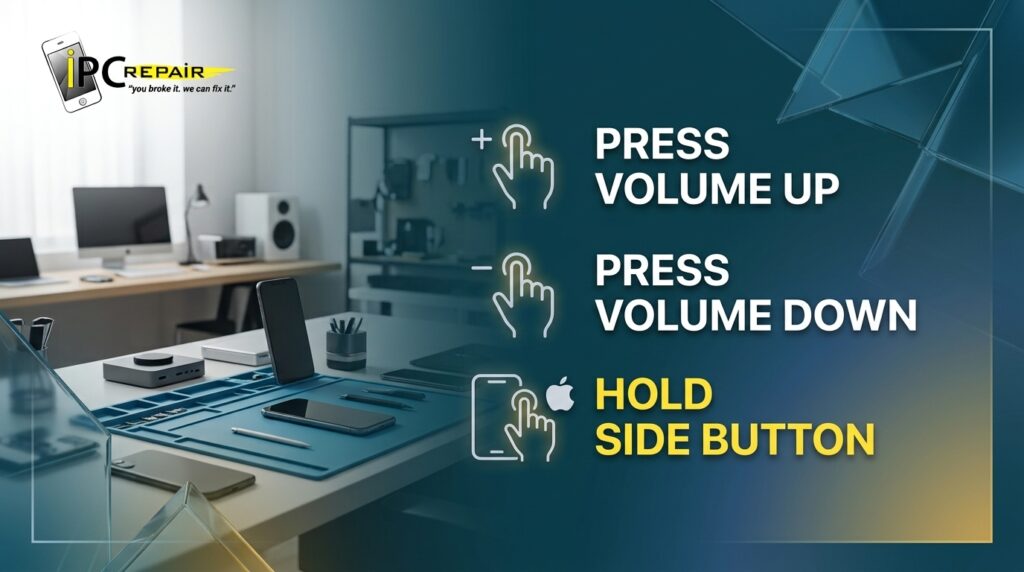
Press and quickly release Volume Up, then press and quickly release Volume Down, then press and hold the Side button until the Apple logo appears.
iPhone 7 / 7 Plus
Press and hold both the Side button and Volume Down button together until the Apple logo appears.
iPhone 6s and earlier
Press and hold both the Home button and the Side (or Top) button together until the Apple logo appears.
This single step resolves the majority of “black screen” cases caused by a software freeze rather than a hardware fault.
Step 3: Inspect the Charging Port and Cable
If the phone still shows no response, the issue may not be the phone at all it could be the charging path.
- Check the charging port for lint, dust, or debris. Pocket lint is a surprisingly common cause of failed charging.
- Gently inspect with a flashlight; never insert metal objects into the port.
- Check the cable for fraying, bent pins, or a loose connector cable failure is more common than most people expect.
- Try the same cable and adapter on a different iPhone, if one is available, to isolate the problem.
Step 4: Try a Different Charger and Outlet
Rule out the power source itself:
- Test a different wall outlet.
- Try a different Apple certified (or MFi certified) cable and adapter.
- Avoid uncertified third party chargers inconsistent power delivery from off brand adapters is a known cause of charging port and battery issues over time.
If the phone charges and powers on with a different cable/adapter combination, your original charger was the problem not the phone.
Step 5: Check for Water or Liquid Damage
If the phone was recently near water, sweat, humidity, or any liquid, stop trying to charge or power it on. Charging a phone with internal moisture present can cause a short circuit and turn a repairable situation into a much more serious one.
Signs of liquid exposure:
- The Liquid Contact Indicator (a small dot in the SIM tray, visible with a flashlight) has turned red or pink instead of white/silver.
- Corrosion or a sticky residue near the charging port.
- The phone worked briefly after contact with liquid, then died.
If liquid damage is suspected, place the phone in a dry, room temperature spot, do not charge it, and do not use a hair dryer or place it in rice both can push moisture deeper into the device or cause additional damage. This is a case for professional liquid damage assessment rather than a home fix.
Step 6: Look for a Boot Loop or Stuck Apple Logo
If the screen shows the Apple logo, then goes black, then shows the logo again in a repeating cycle, that’s a boot loop typically a software level failure rather than a dead battery.
- Try the force restart sequence from Step 2 first.
- If the loop continues, connect the iPhone to a computer with Finder (or iTunes on older systems) and attempt to update or restore through the software.
- Back up first if the phone allows any access a restore will erase the device.
A boot loop that persists after a restore attempt often points to a hardware level issue with storage or the logic board, which is outside the scope of a home fix.
Step 7: Put Your iPhone in DFU Mode (Advanced Fix)
DFU (Device Firmware Update) mode is the deepest level of software recovery available without opening the phone. It’s a more aggressive step than a standard restore and should be treated as a last resort before assuming hardware failure.
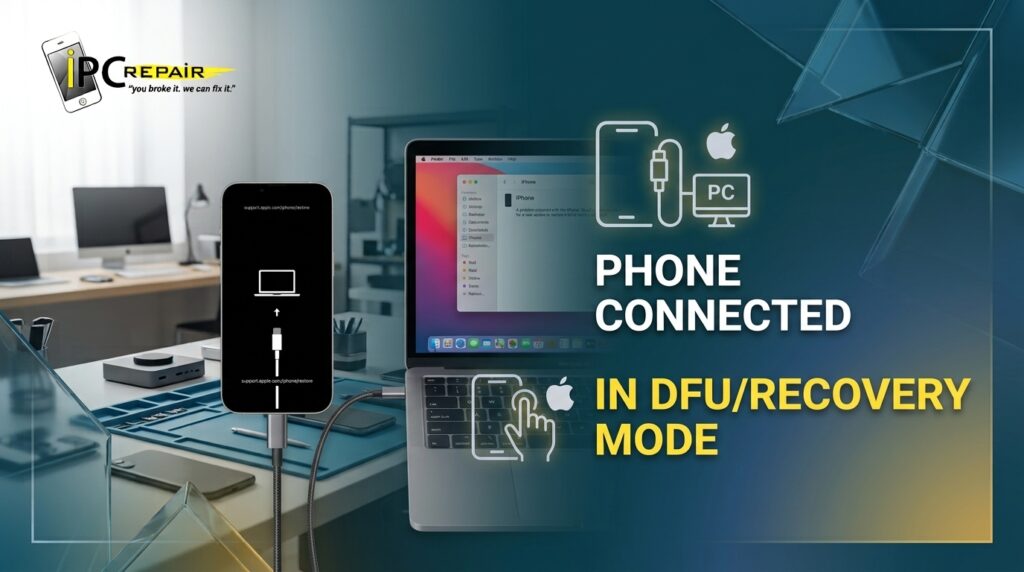
- Connect the iPhone to a computer with Finder or iTunes open.
- Press and quickly release Volume Up, then Volume Down.
- Press and hold the Side button until the screen goes completely black.
- While still holding Side, also hold Volume Down for about 5 seconds.
- Release the Side button but keep holding Volume Down until the computer detects a device in recovery mode.
If Finder/iTunes recognizes the device, you can attempt a restore. If the computer never detects the phone at any point in this process, that’s a strong indicator of a hardware fault rather than software.
When It’s a Hardware Problem, Not a Software One
If you’ve worked through the steps above and the phone still shows no response no charging icon, no Apple logo, no recognition by a computer the issue is very likely one of the following:
- Battery failure batteries degrade over time and can fail outright, especially in phones over 2 3 years old.
- Charging port damage physical damage or corrosion inside the port itself.
- Logic board damage often from a drop, liquid exposure, or a power surge, and typically requires microsoldering to repair.
- Screen/display failure with the phone otherwise running the phone powers on (you may hear notification sounds) but the display itself shows nothing.
These aren’t home fixable, and continuing to force a fix (repeated hard resets, opening the phone without proper tools, using compressed air near liquid damage) can turn a $70 $150 repair into a $300+ logic board replacement.
What NOT to Do When Your iPhone Won’t Turn On
A few habits make the problem worse rather than better:
- Don’t repeatedly force restart a phone with suspected liquid damage this can short a component that would otherwise have survived.
- Don’t use rice or a hair dryer on a water damaged phone.
- Don’t use an uncertified, ultra cheap charger to “test” a phone that already shows charging issues.
- Don’t open the phone yourself unless you have proper anti static tools and replacement adhesive a poorly reseated battery connector is a common cause of self inflicted “won’t turn on” issues.
- Don’t wait too long to get diagnosed if liquid damage is suspected corrosion spreads with time.
How Much Does iPhone Repair Cost in Houston?
Cost depends entirely on what’s actually wrong:
| Issue | Typical Repair Type | Relative Cost |
| Drained/failing battery | Battery replacement | Lower |
| Charging port debris/damage | Port cleaning or replacement | Lower–Moderate |
| Cracked screen, phone still powers on | Screen replacement | Moderate |
| Liquid damage | Diagnostic + component level repair | Moderate–Higher |
| Logic board / no power fault | Microsoldering repair | Higher |
A free diagnosis is the only reliable way to know which category your phone falls into guessing based on symptoms alone can be misleading, since a battery issue and a logic board issue can look identical from the outside.
If you’re in Houston, iPC Repair Houston offers free diagnostics on iPhones that won’t power on, so you know the actual cause and cost before committing to a repair. For iPhone specific issues like charging ports, batteries, and screens, their iPhone repair Houston TX team handles same day turnaround on most repairs.
(If the “won’t turn on” issue is on a laptop rather than a phone, the same charging port and battery logic applies see our laptop screen repair Houston page for laptop specific diagnostics.)
FAQ
Why is my iPhone screen black but the phone still makes sounds? This usually points to a display or display cable failure rather than a dead battery the internal components are running, but the screen itself isn’t receiving or showing signal. This typically requires a screen replacement.
How long should I charge a completely dead iPhone before trying to turn it on? Give it at least 30 minutes on a wall charger with a certified cable before assuming it’s not charging at all. Some models show no charging icon for the first several minutes on a fully depleted battery.
Can a software update cause an iPhone to stop turning on? Yes. An interrupted or corrupted update can leave the phone stuck at the Apple logo or in a boot loop. A force restart or a restore through Finder/iTunes resolves most update related freezes.
Is it safe to charge my iPhone if it got wet? No. Charging a phone with internal moisture present risks a short circuit. Let it dry undisturbed and avoid power until it’s been assessed.
Will a force restart delete my photos or data? No. A force restart is not the same as a factory reset it doesn’t erase any data. A DFU restore, however, can erase the device, so back up first if the phone allows any access.
How do I know if it’s the battery or the logic board? Both can produce identical symptoms (won’t power on, no charging response). The only reliable way to tell them apart is a diagnostic that tests power delivery at the board level this is why guessing at home often leads to buying the wrong part.
What if my iPhone is still under Apple warranty? If it’s within warranty and there’s no visible physical or liquid damage, an Apple Store or authorized provider may repair it at no cost. If it’s out of warranty or has damage that voids coverage, an independent repair shop is typically faster and less expensive for the same fix.
Getting It Fixed in Houston
Most “iPhone won’t turn on” cases resolve with a force restart or a fresh charger. If you’ve been through every step above and the phone is still unresponsive, that’s the point to stop troubleshooting and get a professional opinion continuing to guess risks turning a simple fix into an expensive one.
iPC Repair Houston provides free diagnostics at their Rice Village location (5600 Kirby Dr N 2), with same day repair on most iPhone issues including batteries, charging ports, screens, and liquid damage. Walk in, call (713) 847 7103, or get an instant quote before you come in.